
Start when Windows starts |
Specify whether Xpert-Timer should be launched automatically when the Windows system starts. |
Open Project Manager at startup |
Open the Project Manager automatically when the program starts. |
Open customer management at startup |
Open your customer management automatically as soon as Xpert-Timer starts. |
Open task management at startup |
Open your task management automatically as soon as Xpert-Timer starts. |
Display program icon in the info area |
Small program icons are displayed next to your Windows clock in the lower right corner of the screen. For Xpert-Timer, this is a small clock. |
Activate last project at startup |
The last project used is reopened when Xpert-Timer starts. |
Display logo in the header of the project manager |
To save space, you can hide the colored Xpert-Timer bar in your project manager. |
Display product logo on startup |
The Xpert-Timer logo is displayed when you start the program. |
Print without print dialog |
To simplify printing, you can simply skip the print dialog. |
Lock workstation during break |
Automatically lock the computer when the Xpert-Timer pause function is activated. |
Icon flashes when project is running |
The green arrow that indicates which project is running in the project manager flashes when you activate this option. |
Keep window on screen |
The window will always be displayed in the visible area. |
The timeline
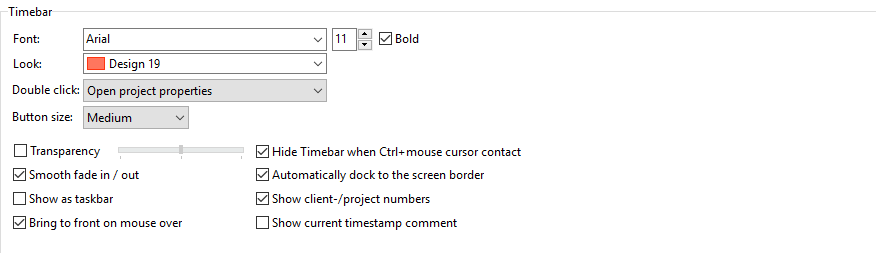
Font |
Set the type, size, and color of the font |
Transparency |
The time window can be displayed as translucent. This allows you to continue to see what is behind the window. |
Display as taskbar |
If you want to integrate Xpert-Timer optimally into your system, display it as a taskbar. This will reduce the size of your desktop by a few pixels, but you will no longer have problems with overlapping windows that you cannot reach due to the "floating" Xpert-Timer windows. |
Automatic docking to the edge/center of the screen |
If you activate this option, your timeline will always be automatically displayed in the center of your desktop. |
Bring to front on mouse contact |
This option is active when you have displayed the timeline as a taskbar. As soon as you move the mouse over the timeline, it becomes "active" and you can click on the buttons directly. |
Automatically hide windows when Ctrl+mouse contact |
Sometimes the Xpert-Timer windows are positioned so unfavorably that you cannot see the dialogs behind them. Hold down the Ctrl key and move the mouse over the timeline, and the dialogs will disappear for 5 seconds and then reappear automatically. |
Smooth fade in/out |
If you want to fade your timeline in and out smoothly, please check this box. |
Appearance |
Choose between different timeline displays. |
Double-click |
Choose what happens when you double-click on a project in the Project Manager. |
Button size |
If you use the Xpert Timer with a touchscreen, for example, you can change the button sizes here. |

Display elements |
Select which buttons are visible on your timeline. You can also show or hide the buttons by right-clicking on your timeline. |

Font for list views |
If the font in the lists is too small for you, you can adjust the font size here. |
User interface |
You can choose between the classic view with colorful buttons and the modern view with simple buttons. |