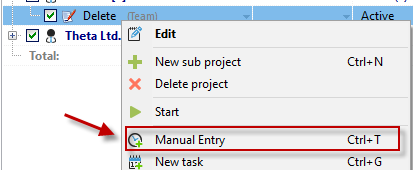
Right-click on a project, the timeline, a timestamp, or the Xpert-Timer icon in your notification area to open the "Add" dialog box. You can also use the keyboard shortcut Ctrl + T.
|
Add project time |
|---|---|
An addition should always be recorded when you are not running the timeline. The convenient thing about the timeline is that you no longer have to worry about time recording. If you use the addition function, you either have to remember what you worked on and for how long, or document it on a piece of paper. However, it is best to get used to using the timeline. |
|

Select the project for which you want to add the times. When recording, you can choose between the recording types "From/To" or "From/Hours." The recording modes "Date" or "Calendar week" are also available. You can also choose whether your time addition should be billable.

From/To |
Here you can enter exact timestamps retrospectively. You can specify the exact time when a project was started and finished. |
From/Hours |
If you only want to enter a number of hours and don't care about the exact time when work was done on the project, select From/Hours. |
Date |
With the "Date" entry mode, you can enter a date directly into the input mask. |
Calendar week |
The calendar week option is recommended if the times to be recorded are already a few weeks old. |
Billable |
Select whether the time stamp should be billable. The time stamp will then be taken into account for transfer to the invoice when recording services. |
Now enter the times to be recorded retrospectively.
You can use the tab key to jump from the date to the time. When you press the Enter key, the time stamp is saved and you can immediately enter the next time stamp.
The comment field is available for you to use later to understand why an addendum was made. Here, you also have the option of working with text modules by right-clicking.
If your timestamp list is grouped by "day," the selected date will always be used for the addition when you create one.