If you already have a large number of projects in your project manager, you should get into the habit of using the project search function. This intelligent search allows you to enter part of the project name or project number and provides you with the corresponding results.

To search for a main project or project number, use the "Main project" field. You can also select the desired search option from the list in the "Search field" and then enter a partial word that is contained in the project or project number you are looking for in the "Search text" field.
The search bar can be found in the Project Manager above your project list and also in many dialogs in Xpert-Timer. The search function is also available on your timeline.

Enter part of your project name and click OK or confirm with the ENTER key.

Xpert-Timer will then return the projects that contain these letters. If the result is a main project, the subprojects will also be returned as results.

If you search for a main project in the "Main project/No." field, you will get the same result as if you right-clicked on a project and selected "Set main project as filter."
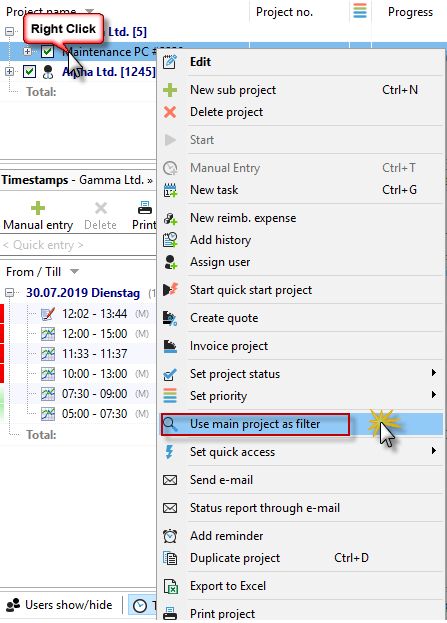
You should use this search function or filter if you are working on a specific project over a longer period of time. This will keep your project manager clear and organized.
|
Search for main project |
|---|---|
You can also drag and drop a main project into the search field! |
|
