the Project Manager You can easily configure your project list according to your preferences. Right-click on a column header to show or hide columns. The columns are printed in your project list exactly as they are displayed.
Right-clicking on a field usually allows you to edit the content of that field.

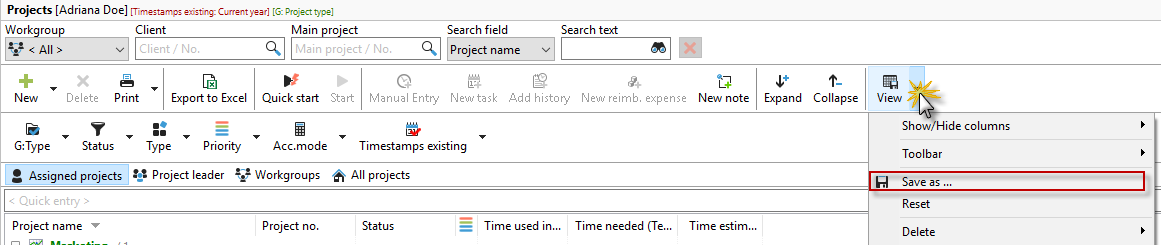
You can save your column settings in the "View" menu item. This means you don't always have to show or hide your columns, but can simply select your desired template from the view. The next time you open the view menu, the saved view will be available as a template.
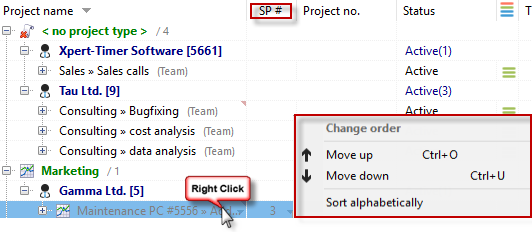
Projects are always sorted by project name. You can also move them manually by right-clicking on a subproject.

If you are working in multi-user mode, it may happen that the order is not "sorted" due to the visibility of the projects. By right-clicking on the column, you can display the UP (subproject number) and check the order of the subprojects accordingly. At the same time, you can also use the "Sort alphabetically" function here. New UP numbers will then be assigned and the subprojects sorted accordingly.