Group, filter, categorize tasks, and save settings
You have many options for displaying your tasks in your personal task list and in the task area. A menu is available for grouping, categorizing, and filtering data.

The following functions are available under the menu items:

The following menu items are available in the task list for grouping, filtering, and categorizing your tasks:

To group your tasks, you can choose from various options in the context menu:
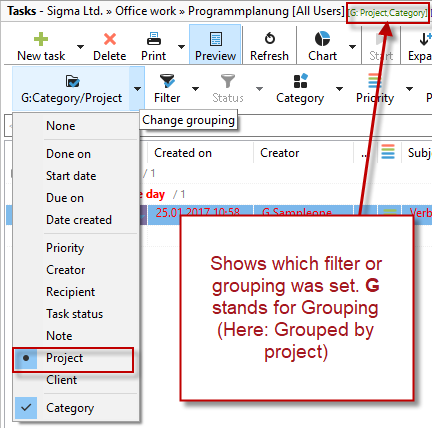
Here you can group by category and select a second level of grouping. In our example, this is "Project."
In the next menu item, you can filter the tasks:

Here you can decide which tasks should be displayed in your task list. In our example, we have filtered for open tasks. New tasks that have never been opened or read appear in the "Unread" filter and in your task list in bold.
In the category filter settings, you can assign your tasks to individually created categories. For example, you can display all tasks with the category "To do on the go" while on the train. Then you will only see the tasks that you could actually complete while on the go.

Save filter settings
You can save your filter, grouping, and categorization settings with the next menu button. This allows you to quickly display individually created lists. To do this, click on the menu item View Settings "Save As":

Choose a meaningful name for your list.

This will then appear under the View menu:

Predefined views are available. Simply click on them with the mouse to use them.

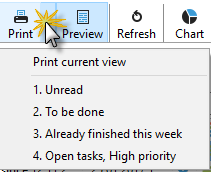
The task list will be printed exactly as you see it in your Xpert-Timer. To print your view, simply click on the "Print" icon. Here, too, you can select from your preconfigured list.