
Indication when no project is running |
Specify after how long you would like to receive a notification when a project is running or not running. You can also deactivate this function. |
Start projects retroactively when Ctrl is pressed |
If you forgot to switch projects and have already been working on another task for some time, you can also start the new project retroactively. To do this, hold down the CTRL key and select the "new" project. You will now be prompted to enter a new start time for the project. |
Action when double-clicking on a project in the project manager |
Select the action you prefer when you double-click on a project in the Project Manager. |
Use quick start project |
If you have activated this option, a quick start button will be available on your timeline.  This quick start button allows you to start a project and thus time tracking without knowing in advance where you will book the recorded time. You can then assign the time accordingly. To do this, select the appropriate action that will be performed as soon as you stop time tracking for the quick start project.  |
Show warning when exceeding project estimate |
If you have entered "Estimated hours" in the project properties, you will receive a short message if this estimate is exceeded. Visually, the exceeded hours are highlighted in orange in the Xpert-Timer Project Manager. |
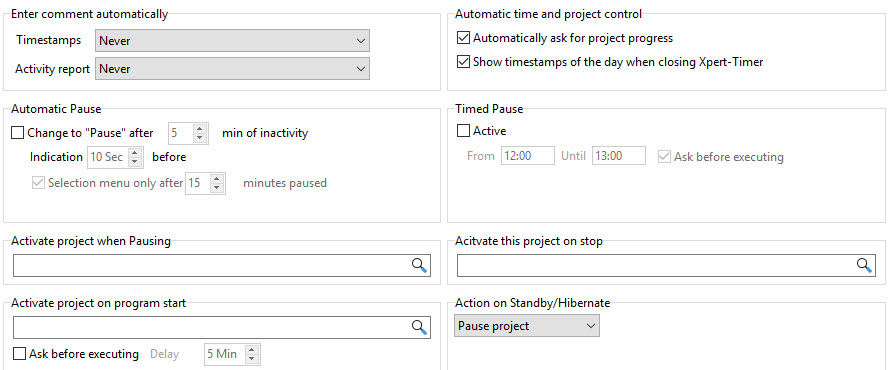
Automatically ask for project progress |
With this option, at the end of the program, you will be asked to estimate the percentage of progress for each project you have worked on. This progress is displayed in color in the Project Manager and helps you keep track of projects that are getting out of hand. |
Show timestamps of the day when closing Xpert-Timer |
When you exit Xpert-Timer, a dialog box opens with all the project times recorded today. Here you can check the recorded times again and correct them if necessary. |
Enter Comment automatically Timestamps/Activity report |
To avoid having to enter comments and history for each individual project, you can configure the settings centrally. For this setting to take effect, you must select "From configuration settings (user)" in the project properties. Xpert-Timer remembers this setting, and it is already preset when you create a new project.  |
Automatic pause |
You can use this function if you often leave your workplace and then have to deal with unexpected other things while you are away. Xpert-Timer notices that you have not moved the mouse for a certain period of time and assumes that you are no longer at your workplace. Xpert-Timer then automatically switches to "Pause" mode. You can optionally assign a "Pause Project" to which Xpert-Timer will switch when it enters this mode. |
-- Selection menu |
The selection menu offers several options for what you want to do with the timestamp. For example, if you activate the automatic break after 10 minutes, you could call up the selection menu after 15 minutes to decide what to do with the break. If you do not call up the menu, the "break" is simply deducted from your timestamp.
 |
Time-controlled pause |
Here you can set times for the pause and activate this function. |
Activate project on stop / pause / program start |
Here you can name projects that you want to activate when stopping, pausing, or starting the program. If you have filled all three options with projects, you will no longer have any gaps in your time tracking throughout the day. This ensures that the entire working day is tracked. |
Ask before activating at program start |
The ask first function is useful if you start up your computer in the morning and then usually leave your workplace to make coffee, for example. Xpert-Timer will then only start the project after a waiting period of 5 minutes, or from the moment you confirm the dialog. |
Action during energy-saving mode/hibernation |
Here you can specify whether your project should be paused, stopped, or no action should be taken in energy-saving mode/hibernation mode. |